FastControl ToolFor easy navigation of Windows and programs.
FastCtrl.zip, Version 1.1, Size: 28,965 bytes.
CRC32/MD5 codes: CB29EDA8/2EA3FB43DB629282B11673EBF40B753E. This is tested and known to work in Windows 7, and Windows 10. (It's a bit ugly in Windows 10, but what isn't?)
What it is, and what it does: FastControl (FastCtrl) is a tool to extend mouse control, making it much faster and easier to navigate the main interface of a Windows computer and most of the programs running on it. To use it, unzip the EXE and the DLL to a convenient directory, and run the EXE. Only one instance will run at a time. To see it, click and hold the middle mouse button. Read what comes next to understand what to do with it, but it's always safe to play around with it if you have no important stuff running. As with anything else, learn how to use it before doing critical work with it. FastControl emulates the old (and sorely missed) 'Hyperjump' that was part of the MouseWare driver and software that Logitech supplied with most of their hardware for at least a decade, around the turn of the millennium. This emulation is fairly complete, and will be instantly familiar to anyone who used the original, but this is an early release of a work in progress. It's good enough for release, but the aim is to keep working on it while I can, whenever some obvious improvement in reliability can be made, or to add some feature in the original which I did not emulate as fully as needed. Please note: I do this my way, in the spirit of the original, so I am not open to suggestions and wishlists because the aim is strict avoidance of 'mission creep'. The aim is singular, and specific: Make something as close to the old Mouseware driver and its HyperJump, as I can get it, INCLUDING flaws, except where easy and obvious improvement can be found. FastControl, like HyperJump, shows a small 9-part square on the screen when the user holds down the middle mouse button. (There were other configurations but I went with the one that worked best for me, and I'd tried the others and settled on what I thought was the best, and still think it so, decades later). The small square has eight buttons around a central square. If 'reading' them like a book written in western languages, they are ordered 1 through 9, as follows. (Most windows or controls will be outlined to indicated the target and intent of action, where such action is available.)
Here comes a very confusing set of images to show what it can do. Stay with it, it's a lot easier in real life. :) For a start, there will never be more than one of those squares showing, and usually it stays out of your way like the ideal butler.. Second, you'll know the right one here because it will have a cursor on it. If you find the colours a bit lurid, know that this is based on my colour scheme, and in a standard scheme it will look very different. FastCtrl applies the same methods that Logitech's Mouseware did, though I decided that taking into account every pixel under the control outlines was ugly and excessively complex, so I draw with a single clean colour for those. 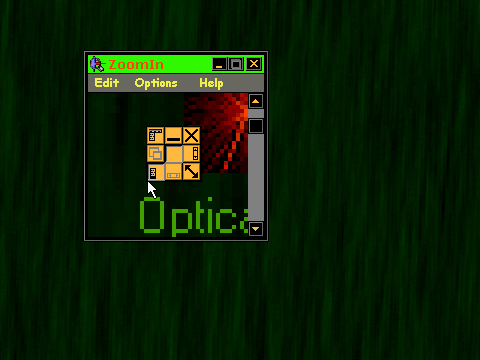 Get a screenshot and go to the menu for an image editor... 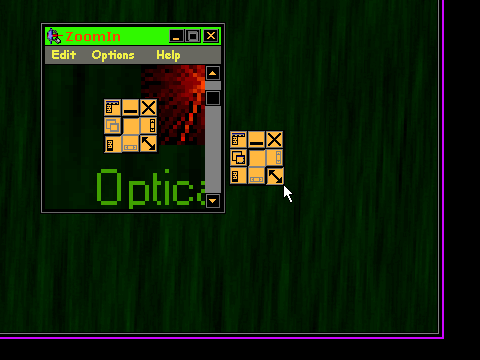 Resize the cropped image's edit window so it fits this image size. 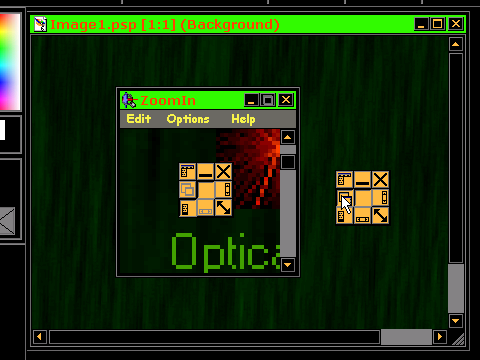 Recall the previous window to continue the demonstration. 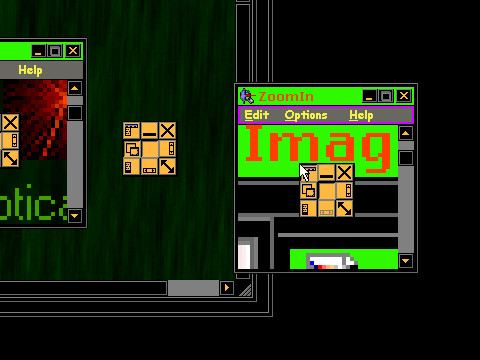 Why call a popup menu when the original is so close?! But anyway... 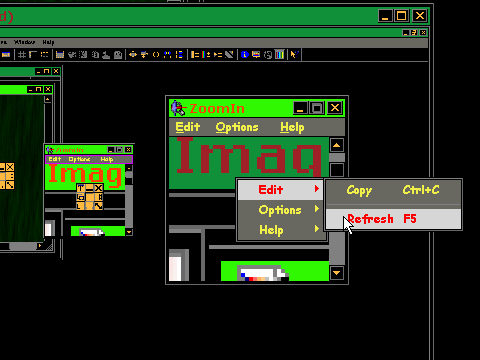 The proof of the pudding is in the eating. Tasteful, isn't it? 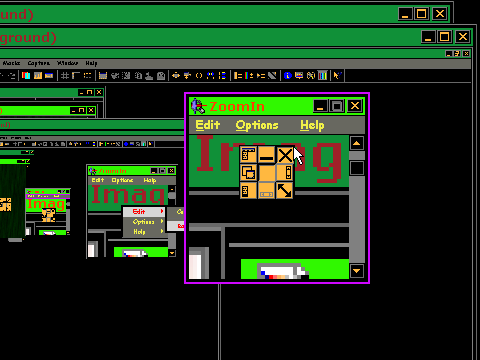 Before those little squares really get out of hand, close something! 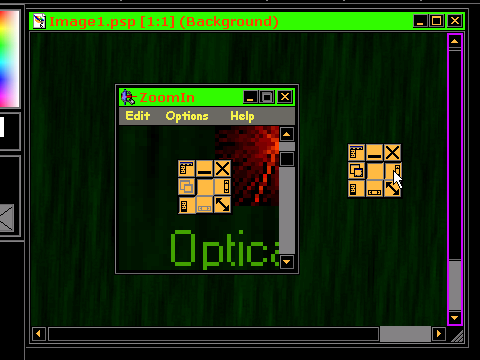 This is a scrollbar. I could indicate the horizontal bar too but that would just be silly. Some general notes: Any normal click on the central square will hide the FastCtrl without committing to any action, but the action described above can shut it down on demand, restoring any system settings that it found for speed, acceleration, (and enhanced precision in later versions of Windows). While running, it switches off all those settings, and this is appropriate, but it will leave things as it finds them when it shuts down, and it NEVER makes permanent changes to the registry or any INI file (except its own, in future versions). Another thing FastCtrl does (that Logitech's Mouseware also did, before the method was made standard in Windows), is to put the pointer on what is the most likely button (the default, or focused, button) to be clicked when a dialog window appears or is changed. It will do this more reliably than most inbuilt systems, so those should be switched off, especially if you want consistent results when using FastCtrl on different systems. Yet another detail of the original, was an excellent 'acceleration' curve if the speed was set slowest, and acceleration was set highest. This is not the same as the inbuilt 'acceleration thresholds' method built into Windows. It is far smoother, more graceful, even than the more recent 5-threshold method for 'enhanced precision' which is not documented anyway, so is subject to yet more possibly unwelcome changes by Microsoft in future. FastCtrl emulates the original Logitech Mouseware response curve as closely as possible, because it is an excellent compromise between easy crossing of a screen with minimal hand movement, while still getting easy control of detailed single-pixel moves. This is a detail that is extremely important for practical computer control, especially for people with repetitive strain injury, or arthritis. It does this by minimising the tension and strain in the hand and forearm during use, something which is problematic with many drivers and 'mouse controllers' when used for anything but very short periods. FastCtrl makes it easy to work for many hours at a time. I know this because I do it, and it's why FastCtrl was necessary, above all other considerations. Some notes on the historical context and the technicalities for those who want to know: In Windows 98, the cursor movement would be clipped to within the small square, making its actions a lot more tightly defined than the 'mouse gestures' that became a more familiar way to do things on later systems. This tightly controlled behaviour was important in making it easy to use, because if it's 'gestures' are tightly constrained, yours don't have to be. In Windows XP, while the old HyperJump worked, this constraint was lost, and eventually Logitech wanted to make new software rather than try to manage the changes forced on them by Microsoft. I had plenty of time, and liked the HyperJump so much that I stayed with Windows 98 to be able to use it! (There were many other reasons, like top grade hardware that used to cost a grand per device, and would take the same to replace for newer system compatibility, so the upshot is, I stayed). That said, I had reason, eventually, to set up Windows 7 machines. It was vital to me, to have the control I was used to, because the move was like having to wade in deep dirty water without any boots on. I'm not knocking Windows 7, it's just the way it is, having to lose the speed and ease I was used to, and I wouldn't stand for it, so I made FastCtrl. One thing that is extremely important is that the EXACT SAME code had to work equally well on both Windows 98, Windows 7, and Windows 10. These are all great operating systems, each with people who stay with it. Fortunately many of the more esoteric API functions DO exist in W98! They were quietly released at that time in advance of Windows 2000's release, most likely because Microsoft wanted a wide base of programmers using MSDN to test them, to make sure that the business users they courted did not flee back to UNIX in bitter disappointment after trying Windows 2000. This succeeded, and the early Windows API was an act of collective genius, and most of what existed then still does, and is still the majority part of the entire API. Staying with this core is what guarantees widest compatibility. Something lost in maintaining a single tool like this, to run on all versions of Windows where possible, is using a dedicated device driver. FastCtrl uses a global WH_MOUSE hook (in a DLL file), because this is the one method that works on Windows 98, Windows 7, and Windows 10, and even on a 64-bit system. The price of this is not having any ability to intercept and modify raw mouse movement data in advance of the 'hook chain', so an awkward bit of coding is needed to optimise for the 'acceleration' used. The original Logitech exponential curve is better than that found on most modern systems! There are plenty of people complaining of that fact, and this is one reason I am making FastCtrl available. In Windows 7 and 10 the API offers settings that can be made to match the original response closely (unlike in W98, where it is best to use Logitech's original software). The balance between fast crossing of a whole screen using minimal movement by the user, combined with an easy and graceful precision for single pixel moves, is vital for normal use of any system. There is an advantage to using a global mouse hook: the program can be loaded late, on demand, and equally easily shut down, like any other program a person may use, without need to reboot, or even 'install' something in the complex way so often demanded of computer users, even for the simplest things! For example, FastCtrl may help in most games, but probably not in a fast action game, where people make their own arrangements anyway. FastCtrl is intended to be as convenient as possible in every detail. Some differences will be seen between FastCtrl and the Logitech Hyperjump, mainly to do with what it can recognise as a scrollbar, or a target for mousewheel action. This is unavoidable because this was not standardised at the time, and Logitech had to keep internal records of the expectations of many common programs, then find a way to get consistent results with as many of them as possible. Many of these are now extinct! Most of them would never have applied to Windows 7 because Logitech's older software could not run there anyway! For this reason, mousewheel and scroll locking actions may be inconsistent (or missing) with some programs. Some top-level menubars, those designed for Windows XP and later, will not be recognised either, but this is a weakness of the original too, so while I may find a way to handle those in FastCtrl, don't count on it... Browsers are especially bad because they use very nonstandard methods to render everything, and this too was something Logitech never solved either, at least not with their original software. |
